Giga Extension/Debugging
Viewing Included Files
How to check which files are included or excluded in your Giga project
When troubleshooting errors in your Giga project, it's important to check which files are being included or excluded. The VS Code Output panel provides this information in the "Giga" channel.
Accessing the Output Panel
- Open your project in VS Code
- Click on View in the top menu
- Select Output (or press
Ctrl+Shift+U/Cmd+Shift+U) - In the dropdown menu of the Output panel, select Giga
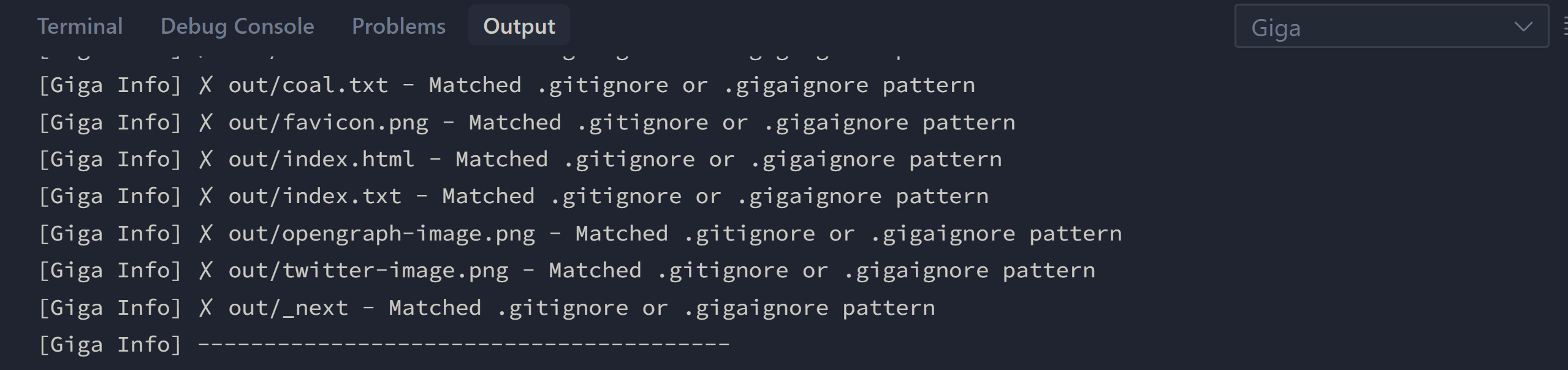
Reading the File Inclusion Logs
The Giga output channel shows:
- Files being scanned
- Files being included in the build
- Files being excluded from the build
- Any errors encountered during file processing
You can copy these logs by selecting them in the Output panel, right-clicking, and selecting Copy. This can be helpful when sharing debugging information with the support team.
Common Issues to Look For
- Files marked as "excluded" that should be included
- Missing file references